Here I am back to post on this blog which I thought that I would abandon when Unity was introduced. Much as I tried, I just could not get used to the interface, even downright hating it. It feels like a real step backwards for Ubuntu. Perhaps with time it will really shine and become great on tablets and portable devices. As a desktop user interface, it leaves much to be desired. I personally desired more, so I looked around for a while and then made the jump to Linux Mint 12. While I enjoyed using Mint, I still missed ubuntu and the community. I thought I'd give the next version a test trial when it was released, but still heard negative reviews about it. I then decided to try Xubuntu pangolin alpha. I had previously tried Xubuntu back in 2009 and liked its simple approach to things. I didn't stay with it only because I still enjoyed using Ubuntu as my everyday desktop OS at the time. I now find that I prefer Xubuntu because it reminds me of a time when Ubuntu OS was a much better desktop that I could easily configure to my liking. The Xubuntu pangolin test image is running incredibly smooth for an Alpha. Much better than any alpha release I've tried in the past. I've only encountered a couple of crashes, but that could be due to things that I'm doing with my machine.
I'm currently in the process of getting XBMC up and running on my machine as well. As I've never used it before, I've only got a basic setup at the moment, but there are so many tweaks and addons that I have to look at to take it to the next level. I will then try hooking it up to my new 42" HD LED TV and see how my family reacts.

Friday, February 17, 2012
Saturday, July 2, 2011
Absence makes ubuntu grow fonder
Have I abandoned this blog? Not quite. Have I left Ubuntu behind? I have to be honest and state that when I saw the changes that were being made to version 11.04, I started searching for a replacement distro. I had tried the beta and was not impressed with the design or layout that was being implemented. I listened to podcasts that shared my disappointment in the distro interface overhaul that was taking place over at Canonical. I considered switching to some of the other distros that I have tried in the past. In the end, I decided to stick it out, but made some compromises. I didn't like Unity, so I disabled it after installing Ubuntu 11.04. I made some other tweaks and modifications to my system that suits the way I use my computer. I may publish those changes in future, but then everyone has their own personal settings, and my changes may not be what you're looking for. I'm looking forward to the future, and what Ubuntu has in store. Linux is growing and maturing very quickly these days and it's great to be able to follow along and watch it happen.
Saturday, March 12, 2011
Ubuntu Questions and Answers
Do you have a question about Ubuntu that you can't find an answer for? Are you struggling to get your system up and running? Some glitch or gremlin keeping your computer from recognizing a printer or scanner? You can get answers to your question from the Questions for Ubuntu site. Head over to the Questions for Ubuntu launchpad site. Log in and type in a question. Provide clear and detailed information in your questions and you should get an answer fairly quickly. You can even log in to lend a hand in answering questions if you see an answer that you know the answer to. You don't even need to be an Ubuntu guru to answer. You may have struggled with a similar problem recently and found the answer somewhere. Pass along the answer and help someone else in a similar situation. Pay it forward. This helps everyone in the community out. And we all grow in our knowledge using Ubuntu that much more!


Sunday, February 13, 2011
Mobile Media Mood
My wife has an old Nokia phone. She asked me if I could change the ringtone for her. I tried copying an mp3 file and a wav file, but neither worked. It turns out that the phone uses its own awb format for files.
I searched the ubuntu forums for a quick fix on converting mp3s to amr format. There are a few posts on using ffmpeg to do the conversion, but I couldn't find/install the codecs needed for the amr format. I hope to explore this more in the future, but just don't have the time at the moment.
In the end, I cheated and downloaded a simple media converter that works brilliantly. It's called Mobile Media Converter. It's currently on version 1.7.1
You can download it from the site or from my own box.net account.
This was a quick and easy way of converting an audio file to what I consider an obsolete audio format. Hopefully I can find a good deal on a new phone for my wife so that she can retire her relic.

I searched the ubuntu forums for a quick fix on converting mp3s to amr format. There are a few posts on using ffmpeg to do the conversion, but I couldn't find/install the codecs needed for the amr format. I hope to explore this more in the future, but just don't have the time at the moment.
In the end, I cheated and downloaded a simple media converter that works brilliantly. It's called Mobile Media Converter. It's currently on version 1.7.1
You can download it from the site or from my own box.net account.
This was a quick and easy way of converting an audio file to what I consider an obsolete audio format. Hopefully I can find a good deal on a new phone for my wife so that she can retire her relic.

Saturday, December 18, 2010
Joining AVI files together
Just a quick post on something I was trying to do today. I wanted to join two avi files together into one movie file.
I installed mencoder first:
sudo apt-get install mencoder
Then I used the command:
mencoder -ovc copy -oac copy firstpart1.avi secondpart2.avi -o fullmovie.avi
-ovc tells mencoder to keep the original video file
-oac tells mencoder to keep the original audio file
-o specifies the final output file name
Now it's off to watch the movie.
I installed mencoder first:
sudo apt-get install mencoder
Then I used the command:
mencoder -ovc copy -oac copy firstpart1.avi secondpart2.avi -o fullmovie.avi
-ovc tells mencoder to keep the original video file
-oac tells mencoder to keep the original audio file
-o specifies the final output file name
Now it's off to watch the movie.
Wednesday, September 29, 2010
Pass the fork and dig in
The Openoffice community has rebranded itself as The Document Foundation. This foundation is currently working on the development of LIbreoffice. Libreoffice is an independant fork of Openoffice which was formed by the community of developers working on Openoffice. In the LibreOffice press release the foundation invites Oracle "to become a member of the new Foundation, and donate the brand the community has grown during the past ten years. Pending this decision, the brand "LibreOffice" has been chosen for the software going forward." They're waiting for a response from Oracle.
In the meantime, a beta is available for download. Here's how to do it.
Grab the tar.gz file from here and extract it on your pc. This will download the .deb files you'll need. Open terminal and navigate to the folder named DEBS
Type in the command
sudo dpkg -i *
Move to the folder named DEBS/desktop_integration and repeat the command
sudo dpkg -i *
The LibreOffice 3.3 icons should now be available under Applications>Office.
In the meantime, a beta is available for download. Here's how to do it.
Grab the tar.gz file from here and extract it on your pc. This will download the .deb files you'll need. Open terminal and navigate to the folder named DEBS
Type in the command
sudo dpkg -i *
Move to the folder named DEBS/desktop_integration and repeat the command
sudo dpkg -i *
The LibreOffice 3.3 icons should now be available under Applications>Office.
Friday, August 6, 2010
Firefox addons added after install
Having completed my fresh install, I now like to start customizing the look and feel of Ubuntu.
Firefox offers a whole host of addons and themes that you can use enhance your online experience. There are several that I always install after a new installation. (I have posted addons in the past, but here is an updated post.)
Xmarks is the first one that I install. I have used this addon of for quite some time now, starting when it was called Foxmarks. It allows me to keep a backup of my bookmarks that I can access from any system either via the xmarks addon or the online database. It also allows you to store passwords as well if you wish.
I've recently discovered an addon for storing passwords called LastPass. I heard about it while listening to Security Now with Steve Gibson. He raved about it so much that I had to try it for myself. It works well and I no longer have to dig through my old notebook searching for the odd password any longer.
Autofill Forms does exactly what the name says. It allows you to complete online entry forms without typing in all your info each time. This is a great addon for those who like to enter contests. Can't say that it helps you win more often though.
Stumbleupon is one addon that I couldn't live without. It's more like an addiction than an addon. You'll have to try it and see for yourself.
Downloadhelper allows you to download and store online media content locally. Handy for media of all kinds.
Download Statusbar is simply a monitor bar for your downloads. I'm surprised that this isn't built in to Firefox by default.
Colorfultabs is eye candy that changes each of your open tabs to a different color.
Personas is a new addon that allows you to personalize your browser with skins.
I use several others such as Cooliris, Firefoxsync, No Squint, Optimize Google, and FEBE.
These are my addons that I use for now, but I'm always on the lookout for new and useful addons. If you know of any more, leave me a note.
Firefox offers a whole host of addons and themes that you can use enhance your online experience. There are several that I always install after a new installation. (I have posted addons in the past, but here is an updated post.)
Xmarks is the first one that I install. I have used this addon of for quite some time now, starting when it was called Foxmarks. It allows me to keep a backup of my bookmarks that I can access from any system either via the xmarks addon or the online database. It also allows you to store passwords as well if you wish.
I've recently discovered an addon for storing passwords called LastPass. I heard about it while listening to Security Now with Steve Gibson. He raved about it so much that I had to try it for myself. It works well and I no longer have to dig through my old notebook searching for the odd password any longer.
Autofill Forms does exactly what the name says. It allows you to complete online entry forms without typing in all your info each time. This is a great addon for those who like to enter contests. Can't say that it helps you win more often though.
Stumbleupon is one addon that I couldn't live without. It's more like an addiction than an addon. You'll have to try it and see for yourself.
Downloadhelper allows you to download and store online media content locally. Handy for media of all kinds.
Download Statusbar is simply a monitor bar for your downloads. I'm surprised that this isn't built in to Firefox by default.
Colorfultabs is eye candy that changes each of your open tabs to a different color.
Personas is a new addon that allows you to personalize your browser with skins.
I use several others such as Cooliris, Firefoxsync, No Squint, Optimize Google, and FEBE.
These are my addons that I use for now, but I'm always on the lookout for new and useful addons. If you know of any more, leave me a note.
Thursday, August 5, 2010
Steps to a complete Ubuntu install
This post is more for archival information. I usually do a complete re-installation of Ubuntu with each major release, and I want to document the extra steps I take to personalize my system to my liking. This may or may not be of interest to others, but it will show the steps I take after I remove the CD of a freshly installed system.
1. First step after closing cd tray and rebooting is to kill all the default Ubuntu Sounds, expecially the startup sound. Whoever thought this was a good idea? Silence is golden, they say.
2. I like to delete the bottom panel to give me more desktop space. I also add the Window List and the Workspace Switcher from the bottom panel to the top panel as I don't want to lose them.
3. Speaking of the top panel, I also add icons for Terminal, Synaptic P.Mgr, and Force Quit. Later on I add an icon for Thunderbird, after it gets installed along with an icon for the Downloads folder for quick access to downloaded files.
4. I deactivate the screensaver and disable the lock screen as well from the screensaver settings. I hate the screen going to sleep when I step away for a few minutes and find that I'm being prompted for my password again.
5. The Ubuntu gurus decided that the menu buttons would be much better on the left rather than the right. No choices given on install, but I apply the fix here by hitting ALT-F2 and typing gconf-editor. From here, find Apps>Metacity>General and change the old button_layout text to read 'menu:minimum,maximum,close' (without quotes) Ahh, buttons back where they belong.
6. This is the point where I take a break and install the necessary Updates. Time for a coffee.
I'll add a follow up to this post listing all the programs that I find useful and can't live without.
1. First step after closing cd tray and rebooting is to kill all the default Ubuntu Sounds, expecially the startup sound. Whoever thought this was a good idea? Silence is golden, they say.
2. I like to delete the bottom panel to give me more desktop space. I also add the Window List and the Workspace Switcher from the bottom panel to the top panel as I don't want to lose them.
3. Speaking of the top panel, I also add icons for Terminal, Synaptic P.Mgr, and Force Quit. Later on I add an icon for Thunderbird, after it gets installed along with an icon for the Downloads folder for quick access to downloaded files.
4. I deactivate the screensaver and disable the lock screen as well from the screensaver settings. I hate the screen going to sleep when I step away for a few minutes and find that I'm being prompted for my password again.
5. The Ubuntu gurus decided that the menu buttons would be much better on the left rather than the right. No choices given on install, but I apply the fix here by hitting ALT-F2 and typing gconf-editor. From here, find Apps>Metacity>General and change the old button_layout text to read 'menu:minimum,maximum,close' (without quotes) Ahh, buttons back where they belong.
6. This is the point where I take a break and install the necessary Updates. Time for a coffee.
I'll add a follow up to this post listing all the programs that I find useful and can't live without.
My Distro hopping absence
I'm back to blogging again after having left Ubuntu for some distro hopping. I first tried out the new Debian based Crunchbang 10.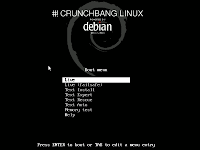 It's still in Alpha testing, but it ran very smoothly for me. I'm not too familiar with either Openbox or the Xfce Desktop environment, but I chose to install Xfce. I love the look and feel of Crunchbang. It ran extremely well on my machine, and although it is still in the alpha stage of testing, I didn't experience any glitches at all. However, I'm so used to Gnome that I didn't extend my visit there. I then tried out Linux Mint, after hearing so many positive things about it. Although it's based on Ubuntu, in my opinion, it ran so much more smoother than Ubuntu. Compiz was active from the first bootup and everything felt so familiar.
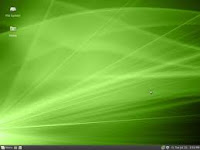 I really enjoyed Linux Mint 9 and would probably go back to Mint when they release a Debian based version sometime in the future. Lastly, I downloaded and installed Fedora 13. One of the only reasons that I did so was that I heard it mentioned so much on the Linux Outlaws podcast as well as on Identi.ca, that I had to see for myself.
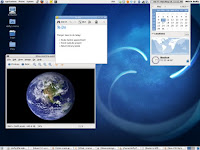 The install and the setup was very easy, although the package management methods are different. Fedora froze on my system several times, and I suspect that Firefox was partially to blame. Fedora ran with Firefox 3.7, while the latest Ubuntu still only installs Firefox 3.6. Fedora is considered more cutting edge as well as being very secure system. I was constantly prompted for passwords when dropping to root. I also found way too many SE Linux popups for my liking. I thought about turning it off, and wondered if everyone did this eventually. That would kind of defeat the purpose.
One major point that had me remove it and install Ubuntu was the LVM2 volume manager. I found that I couldn't access my secondary drive containing Ubuntu created files under ext4. I was wanting to transfer the files to use with Fedora, but in the end I gave up. This brings me to the present day and a brand new install of Ubuntu 10.04 on my desktop.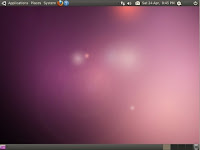
For the moment, I'm back home again.
 It's still in Alpha testing, but it ran very smoothly for me. I'm not too familiar with either Openbox or the Xfce Desktop environment, but I chose to install Xfce. I love the look and feel of Crunchbang. It ran extremely well on my machine, and although it is still in the alpha stage of testing, I didn't experience any glitches at all. However, I'm so used to Gnome that I didn't extend my visit there. I then tried out Linux Mint, after hearing so many positive things about it. Although it's based on Ubuntu, in my opinion, it ran so much more smoother than Ubuntu. Compiz was active from the first bootup and everything felt so familiar.
 I really enjoyed Linux Mint 9 and would probably go back to Mint when they release a Debian based version sometime in the future. Lastly, I downloaded and installed Fedora 13. One of the only reasons that I did so was that I heard it mentioned so much on the Linux Outlaws podcast as well as on Identi.ca, that I had to see for myself.
 The install and the setup was very easy, although the package management methods are different. Fedora froze on my system several times, and I suspect that Firefox was partially to blame. Fedora ran with Firefox 3.7, while the latest Ubuntu still only installs Firefox 3.6. Fedora is considered more cutting edge as well as being very secure system. I was constantly prompted for passwords when dropping to root. I also found way too many SE Linux popups for my liking. I thought about turning it off, and wondered if everyone did this eventually. That would kind of defeat the purpose.
One major point that had me remove it and install Ubuntu was the LVM2 volume manager. I found that I couldn't access my secondary drive containing Ubuntu created files under ext4. I was wanting to transfer the files to use with Fedora, but in the end I gave up. This brings me to the present day and a brand new install of Ubuntu 10.04 on my desktop.

For the moment, I'm back home again.
Tuesday, May 11, 2010
Ubuntu--new, improved formula with extra whitening power
The reason I've been absent from this blog lately was due to the fact I wasn't using Ubuntu. While waiting for the LTS release of Ubuntu 10.04 to appear, I migrated over to a different distro. I had previously tried Xubuntu on my laptop and liked it enough to want to continue to find ways to speed up my old laptop. I had heard of Crunchbang before, which was built on Ubuntu, but now their next release is Crunchbang Statler, and it will be built on a Debian base. I also found out that an XFCE version was available. I decided to give it a test drive. I love the simplicity of the desktop and the overall speed of it. I have been using it on my desktop up until this past week, when I decided to do a complete reinstall of both Windows and the new Ubuntu. I'm hoping to pass this laptop over to my daughter who is in desperate need of a better computer--at least better than the one she is currently using.
So far, I'm enjoying the new look and feel of Ubuntu. I've also just completed a system upgrade on my desktop computer from Ubuntu 9.10 to 10.04 and it went smoothly.
I'm currently trying to configure the laptop to accept Japanese input so that my daughter can use it with her studies. I've hit a couple of snags in that department, and since I don't read or write Japanese, it may take a while to figure out.
It very simple to install SCIM and get Anthy working, but she would also love to be able to use Furigana input as well. There is a Furigana injector that can be installed in Firefox as well as a Furigana addon with openoffice. I've installed both, but every option is greyed out in OO and I can't seem to be able to bring up the dictionary either. Not sure how to resolve this issue. Others online are having similar problems. I will probably edit this post with more info as I learn more about this problem.
So far, I'm enjoying the new look and feel of Ubuntu. I've also just completed a system upgrade on my desktop computer from Ubuntu 9.10 to 10.04 and it went smoothly.
I'm currently trying to configure the laptop to accept Japanese input so that my daughter can use it with her studies. I've hit a couple of snags in that department, and since I don't read or write Japanese, it may take a while to figure out.
It very simple to install SCIM and get Anthy working, but she would also love to be able to use Furigana input as well. There is a Furigana injector that can be installed in Firefox as well as a Furigana addon with openoffice. I've installed both, but every option is greyed out in OO and I can't seem to be able to bring up the dictionary either. Not sure how to resolve this issue. Others online are having similar problems. I will probably edit this post with more info as I learn more about this problem.
Thursday, December 24, 2009
Merry Christmas!
This blog has been sitting idle for a while now, but I hope to begin posting more in the future as Ubuntu Lucid Lynx has started to make its appearance. I've already installed the first Alpha of Lucid on my laptop and all seems well as we head into a new year. Cheers to all visitors of this humble blog and many well wishes to you all for the Christmas Season and the New Year!


Thursday, November 5, 2009
60 second shutdown count taken to zero
Here's the fix that will remove the 60 second countdown prompt when shutting down Ubuntu 9.10.
Open up a terminal and enter this command:
gconftool-2 -s '/apps/indicator-session/suppress_logout_restart_shutdown' --type bool true
This tip comes courtesy of the excellent blog OMG!Ubuntu website
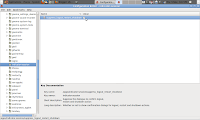
Another way to accomplish this is by using the GUI interface gconf-editor , and checking the box as shown in the photo posted here.
Either way you go, you'll have eliminated the prompt at shutdown.
Open up a terminal and enter this command:
gconftool-2 -s '/apps/indicator-session/suppress_logout_restart_shutdown' --type bool true
This tip comes courtesy of the excellent blog OMG!Ubuntu website

Another way to accomplish this is by using the GUI interface gconf-editor , and checking the box as shown in the photo posted here.
Either way you go, you'll have eliminated the prompt at shutdown.
Sunday, November 1, 2009
Xubuntu to the rescue

This past month has been busy, but during that time I've been able to install a few distros on my laptop to test drive. Here are some of the distros that I've installed and tried out on my laptop: I've tried Fedora 11, PCLinux 2009, OpenSuse 11.1 and Mandriva 2009.1.
Each distro had its own pros and cons to them, but I found that my preference would lean toward either Fedora or OpenSuse. They both installed well and got me up and running quickly. Their forums answered my questions and were helpful in getting my wifi problems resolved quickly.
The reason that I toured other distros was that I was not entirely encouraged by the Alpha and Beta versions of Ubuntu 9.10.
Now that the final release is out, I'm once again trodding into Ubuntu territory. However, this time I'm trying out Xubuntu (pronounced Zoo-buntu).
Xubuntu uses the lightweight Xfce desktop environment and is designed for older machines with fewer system resources. This description seems to describe my aging Compaq laptop.
Once I downloaded and burned my CD, the install process was as familiar as installing Ubuntu.
I found that after install, the boot process was much quicker than I ever had loading Ubuntu in the past.
I've posted a video on youtube of the boot process.
Sunday, September 13, 2009
My Karmic Dilemma part 2
I've found a temporary fix to the frozen suspend/hibernate bug I'm experiencing. It's only a workaround solution, but at least I don't have to keep rebooting my system after I open my laptop to resume work.
This fix requires the latest version of Ubuntu Tweak (vr 0.4.9).
In Ubuntu Tweak under System>Power Management there are boxes checked for both Suspend and Hibernate. Simply uncheck them both and reboot.
Now when I restart and close my laptop lid, the screen simply blanks and resumes immediately as soon as I lift the lid. Problem solved.
This fix requires the latest version of Ubuntu Tweak (vr 0.4.9).

In Ubuntu Tweak under System>Power Management there are boxes checked for both Suspend and Hibernate. Simply uncheck them both and reboot.
Now when I restart and close my laptop lid, the screen simply blanks and resumes immediately as soon as I lift the lid. Problem solved.
Tuesday, September 8, 2009
My Karmic Dilemma
I've tried using Karmic Koala Alpha 5 for the last couple of days on my laptop, but the suspend/hibernate bug was really hindering my appreciation of it.
Having to reboot my laptop every time I closed the laptop lid when I stepped away for a while is not the way I want to run my system.
I've since removed it from my system in frustration, and I'll just wait until Karmic goes into beta testing on October 1st.
I'm not willing to test Alpha 5 on my desktop computer as I can't risk losing any files on the hard drive. I wish that I had a spare hard drive to trial it there as I'm sure that it would run properly on the desktop pc as the graphics card is brand new and up to date.
Now that I've decided to remove Karmic from my laptop, I've decided to use it as a testing machine for other flavours of linux. I've just installed opensuse 11.1 on it and except for the minor glitch with my wifi setup, which I expected, opensuse is running extremely well on my laptop.
I have compiz running smoothly with all graphic effects enabled. Similar to earlier versions of Ubuntu. I suspect opensuse is not using the most up to date kernel or graphics drivers or I'd be experiencing problems with it as well.
I'll try it out for a few days and then move on to other distros. I've already burned a couple of live CDs of other distros to test drive. This will only be temporary while I await the beta release.
Having to reboot my laptop every time I closed the laptop lid when I stepped away for a while is not the way I want to run my system.
I've since removed it from my system in frustration, and I'll just wait until Karmic goes into beta testing on October 1st.
I'm not willing to test Alpha 5 on my desktop computer as I can't risk losing any files on the hard drive. I wish that I had a spare hard drive to trial it there as I'm sure that it would run properly on the desktop pc as the graphics card is brand new and up to date.
Now that I've decided to remove Karmic from my laptop, I've decided to use it as a testing machine for other flavours of linux. I've just installed opensuse 11.1 on it and except for the minor glitch with my wifi setup, which I expected, opensuse is running extremely well on my laptop.
I have compiz running smoothly with all graphic effects enabled. Similar to earlier versions of Ubuntu. I suspect opensuse is not using the most up to date kernel or graphics drivers or I'd be experiencing problems with it as well.
I'll try it out for a few days and then move on to other distros. I've already burned a couple of live CDs of other distros to test drive. This will only be temporary while I await the beta release.
Sunday, September 6, 2009
ATI support has left the building
Since installing Ubuntu Karmic Koala Alpha 5, I've discovered that being on the bleeding edge of testing software comes at a cost.
My main concern revolves around a suspend/hibernate bug that I have submitted. Whenever I close the lid of my laptop and place the system in suspend mode, it blanks the screen and freezes the system when I resume work, forcing a reboot.
In doing research about this bug I discovered something that may be related to this issue, and
it seems that older model ATI card owners will be out of luck. AMD will no longer be providing support. This means that the fglrx driver will not support kernel 2.6.30 or newer. Karmic is currently running 2.6.31.9-generic.
Catalyst 9,8 is said to have support for the 2.6.30 kernel and I have read that there are patches available.
Using older Catalyst versions won't work either as they won't work with the Karmic Xorg.
Using the open source ATI drivers allows the system graphics to work with multiple monitor support, however this also means not being able to take advantage of OpenGL or direct 3D.
It is rumoured that Ubuntu will release up to date ATI drivers come final release date.
But for now, if you have a newer ATI card or better yet, no ATI card, then you may have better luck using the latest release of Ubuntu Karmic.
My main concern revolves around a suspend/hibernate bug that I have submitted. Whenever I close the lid of my laptop and place the system in suspend mode, it blanks the screen and freezes the system when I resume work, forcing a reboot.
In doing research about this bug I discovered something that may be related to this issue, and
it seems that older model ATI card owners will be out of luck. AMD will no longer be providing support. This means that the fglrx driver will not support kernel 2.6.30 or newer. Karmic is currently running 2.6.31.9-generic.
Catalyst 9,8 is said to have support for the 2.6.30 kernel and I have read that there are patches available.
Using older Catalyst versions won't work either as they won't work with the Karmic Xorg.
Using the open source ATI drivers allows the system graphics to work with multiple monitor support, however this also means not being able to take advantage of OpenGL or direct 3D.
It is rumoured that Ubuntu will release up to date ATI drivers come final release date.
But for now, if you have a newer ATI card or better yet, no ATI card, then you may have better luck using the latest release of Ubuntu Karmic.
Saturday, September 5, 2009
"Whoa. Déjà vu"
 "A déjà vu is usually a glitch in Ubuntu. It happens when they change something."
The above quote was actually from the Matrix with a minor change, but I've just installed the latest Alpha (5) of Ubuntu and there were a few things I've discovered.
They've made some changes to some things in this next version, but as it's still in alpha testing, some more changes may yet occur.
Here is my video of the boot up process for starters. youtube link
I've encountered a few bugs that are somewhat annoying and may prevent me from continuing to test this until it is released as a beta.
The most annoying bug causes my laptop to freeze at a blank screen every time I close the laptop lid and place it in suspend mode. When I reopen the laptop, the screen is simply blank and no key presses will wake it up again, forcing a reboot.
I'll be writing more about my experiences with Ubuntu 9.10 soon.
Friday, June 26, 2009
Tiltshift your photos
I have worked with Tiltshift photography in the past and created some interesting photos using this technique. Now it is possible to recreate this effect using Tiltshift Generator. It will allow you to achieve amazing results out of average photos. It not only creates tiltshift type photos, but can also be used to enhance dull photos and produce lively ones.
Tiltshift Generator is a great addition for any photographer and is worth checking out.
Here are the steps to use to get it on your Ubuntu machine.
Step 1
Click this hyperlink to download the Adobe Air bin file
Move to directory where file was downloaded with Terminal program and
Use chmod +x to make the bin file executable, ie chmod +x AdobeAirInstaller.bin
then run the file using ./AdobeAIRInstaller.bin
Follow the Adobe prompts to complete installing the program.
Step 2
click this link to install Tiltshift Generator It will navigate you to the Tiltshift app installation. If you use Firefox, choose option "Open with Adobe Air Application Installer"
.................BEFORE..................................................................................................... AFTER

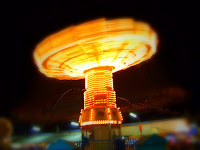
Tiltshift Generator is a great addition for any photographer and is worth checking out.
Here are the steps to use to get it on your Ubuntu machine.
Step 1
Click this hyperlink to download the Adobe Air bin file
Move to directory where file was downloaded with Terminal program and
Use chmod +x to make the bin file executable, ie chmod +x AdobeAirInstaller.bin
then run the file using ./AdobeAIRInstaller.bin
Follow the Adobe prompts to complete installing the program.
Step 2
click this link to install Tiltshift Generator It will navigate you to the Tiltshift app installation. If you use Firefox, choose option "Open with Adobe Air Application Installer"
.................BEFORE..................................................................................................... AFTER


Saturday, May 30, 2009
My sources.list file
I've just done a complete fresh install of Ubuntu Jaunty from the CD I requested from Shipit, as opposed to the upgrade I did on my system when Jaunty was released. I added Medibuntu to my repository to allow me to install the restricted drivers. Here is how my sources.list file looks at present. I will definately be adding more repositories in future and I'll have to edit this post.
This post if mostly for my personal future reference should I do another reinstall. I had originally started out with the Canadian repositories, but I had some trouble with adding keys, so I switched to a US based site for now.
You may use this sources.list if you wish, but don't blame me if your system complains. You can find your sources.list file by opening terminal and entering:
gksudo gedit /etc/apt/sources.list
From here you can edit the file as I have below.
# deb cdrom:[Ubuntu 9.04 _Jaunty Jackalope_ - Release i386 (20090420.1)]/ jaunty main restricted
# See http://help.ubuntu.com/community/UpgradeNotes for how to upgrade to
# newer versions of the distribution.
deb http://ubuntu.secs.oakland.edu/ jaunty main restricted
deb-src http://ubuntu.secs.oakland.edu/ jaunty main restricted
## Major bug fix updates produced after the final release of the
## distribution.
deb http://ubuntu.secs.oakland.edu/ jaunty-updates main restricted
deb-src http://ubuntu.secs.oakland.edu/ jaunty-updates main restricted
## N.B. software from this repository is ENTIRELY UNSUPPORTED by the Ubuntu
## team. Also, please note that software in universe WILL NOT receive any
## review or updates from the Ubuntu security team.
deb http://ubuntu.secs.oakland.edu/ jaunty universe
deb-src http://ubuntu.secs.oakland.edu/ jaunty universe
deb http://ubuntu.secs.oakland.edu/ jaunty-updates universe
deb-src http://ubuntu.secs.oakland.edu/ jaunty-updates universe
## N.B. software from this repository is ENTIRELY UNSUPPORTED by the Ubuntu
## team, and may not be under a free licence. Please satisfy yourself as to
## your rights to use the software. Also, please note that software in
## multiverse WILL NOT receive any review or updates from the Ubuntu
## security team.
deb http://ubuntu.secs.oakland.edu/ jaunty multiverse
deb-src http://ubuntu.secs.oakland.edu/ jaunty multiverse
deb http://ubuntu.secs.oakland.edu/ jaunty-updates multiverse
deb-src http://ubuntu.secs.oakland.edu/ jaunty-updates multiverse
Shipit
## Uncomment the following two lines to add software from the 'backports'
## repository.
## N.B. software from this repository may not have been tested as
## extensively as that contained in the main release, although it includes
## newer versions of some applications which may provide useful features.
## Also, please note that software in backports WILL NOT receive any review
## or updates from the Ubuntu security team.
deb http://ubuntu.secs.oakland.edu/ jaunty-backports main restricted universe multiverse
# deb-src http://ca.archive.ubuntu.com/ubuntu/ jaunty-backports main restricted universe multiverse
## Uncomment the following two lines to add software from Canonical's
## 'partner' repository.
## This software is not part of Ubuntu, but is offered by Canonical and the
## respective vendors as a service to Ubuntu users.
# deb http://archive.canonical.com/ubuntu jaunty partner
# deb-src http://archive.canonical.com/ubuntu jaunty partner
deb http://ubuntu.secs.oakland.edu/ jaunty-security main restricted
deb-src http://ubuntu.secs.oakland.edu/ jaunty-security main restricted
deb http://ubuntu.secs.oakland.edu/ jaunty-security universe
deb-src http://ubuntu.secs.oakland.edu/ jaunty-security universe
deb http://ubuntu.secs.oakland.edu/ jaunty-security multiverse
deb http://ubuntu.secs.oakland.edu/ jaunty-proposed restricted main multiverse universe
deb-src http://ubuntu.secs.oakland.edu/ jaunty-security multiverse
This post if mostly for my personal future reference should I do another reinstall. I had originally started out with the Canadian repositories, but I had some trouble with adding keys, so I switched to a US based site for now.
You may use this sources.list if you wish, but don't blame me if your system complains. You can find your sources.list file by opening terminal and entering:
gksudo gedit /etc/apt/sources.list
From here you can edit the file as I have below.
# deb cdrom:[Ubuntu 9.04 _Jaunty Jackalope_ - Release i386 (20090420.1)]/ jaunty main restricted
# See http://help.ubuntu.com/community/UpgradeNotes for how to upgrade to
# newer versions of the distribution.
deb http://ubuntu.secs.oakland.edu/ jaunty main restricted
deb-src http://ubuntu.secs.oakland.edu/ jaunty main restricted
## Major bug fix updates produced after the final release of the
## distribution.
deb http://ubuntu.secs.oakland.edu/ jaunty-updates main restricted
deb-src http://ubuntu.secs.oakland.edu/ jaunty-updates main restricted
## N.B. software from this repository is ENTIRELY UNSUPPORTED by the Ubuntu
## team. Also, please note that software in universe WILL NOT receive any
## review or updates from the Ubuntu security team.
deb http://ubuntu.secs.oakland.edu/ jaunty universe
deb-src http://ubuntu.secs.oakland.edu/ jaunty universe
deb http://ubuntu.secs.oakland.edu/ jaunty-updates universe
deb-src http://ubuntu.secs.oakland.edu/ jaunty-updates universe
## N.B. software from this repository is ENTIRELY UNSUPPORTED by the Ubuntu
## team, and may not be under a free licence. Please satisfy yourself as to
## your rights to use the software. Also, please note that software in
## multiverse WILL NOT receive any review or updates from the Ubuntu
## security team.
deb http://ubuntu.secs.oakland.edu/ jaunty multiverse
deb-src http://ubuntu.secs.oakland.edu/ jaunty multiverse
deb http://ubuntu.secs.oakland.edu/ jaunty-updates multiverse
deb-src http://ubuntu.secs.oakland.edu/ jaunty-updates multiverse
Shipit
## Uncomment the following two lines to add software from the 'backports'
## repository.
## N.B. software from this repository may not have been tested as
## extensively as that contained in the main release, although it includes
## newer versions of some applications which may provide useful features.
## Also, please note that software in backports WILL NOT receive any review
## or updates from the Ubuntu security team.
deb http://ubuntu.secs.oakland.edu/ jaunty-backports main restricted universe multiverse
# deb-src http://ca.archive.ubuntu.com/ubuntu/ jaunty-backports main restricted universe multiverse
## Uncomment the following two lines to add software from Canonical's
## 'partner' repository.
## This software is not part of Ubuntu, but is offered by Canonical and the
## respective vendors as a service to Ubuntu users.
# deb http://archive.canonical.com/ubuntu jaunty partner
# deb-src http://archive.canonical.com/ubuntu jaunty partner
deb http://ubuntu.secs.oakland.edu/ jaunty-security main restricted
deb-src http://ubuntu.secs.oakland.edu/ jaunty-security main restricted
deb http://ubuntu.secs.oakland.edu/ jaunty-security universe
deb-src http://ubuntu.secs.oakland.edu/ jaunty-security universe
deb http://ubuntu.secs.oakland.edu/ jaunty-security multiverse
deb http://ubuntu.secs.oakland.edu/ jaunty-proposed restricted main multiverse universe
deb-src http://ubuntu.secs.oakland.edu/ jaunty-security multiverse
Thursday, April 23, 2009
Why must I wait when I want to go?
One strange feature in Jaunty is the shutdown prompt window. Why oh why was this included?? When I want to reboot or shutdown, why must I wait 60 seconds each time for this to happen?
I've found a quick fix for this problem. It's so simple, but I see a lot of users on the forums talking about this and asking how to fix that 'bug'.
First thing you need to do is to right-click on the shutdown icon at the top right of the desktop. Choose preferences and then disable box shown in my screen capture.
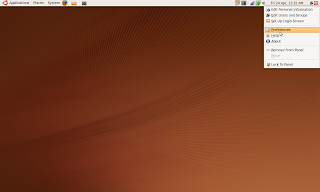 When the preferences window opens, simply uncheck the option that reads "Show confirm dialogs for logout, restart and shutdown"
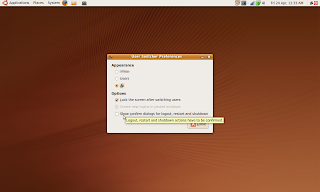
Very easy to do and you'll find no more prompts appearing in future. This can also be re-enabled if you ever feel like doing a 60 second countdown for whatever reason.
I've found a quick fix for this problem. It's so simple, but I see a lot of users on the forums talking about this and asking how to fix that 'bug'.
First thing you need to do is to right-click on the shutdown icon at the top right of the desktop. Choose preferences and then disable box shown in my screen capture.
 When the preferences window opens, simply uncheck the option that reads "Show confirm dialogs for logout, restart and shutdown"
Very easy to do and you'll find no more prompts appearing in future. This can also be re-enabled if you ever feel like doing a 60 second countdown for whatever reason.
Subscribe to:
Posts (Atom)

 Posts
Posts