Thursday, April 23, 2009

Why must I wait when I want to go?

One strange feature in Jaunty is the shutdown prompt window. Why oh why was this included?? When I want to reboot or shutdown, why must I wait 60 seconds each time for this to happen?
I've found a quick fix for this problem. It's so simple, but I see a lot of users on the forums talking about this and asking how to fix that 'bug'.
First thing you need to do is to right-click on the shutdown icon at the top right of the desktop. Choose preferences and then disable box shown in my screen capture.

When the preferences window opens, simply uncheck the option that reads "Show confirm dialogs for logout, restart and shutdown"

Very easy to do and you'll find no more prompts appearing in future. This can also be re-enabled if you ever feel like doing a 60 second countdown for whatever reason.

Ubuntu Jaunty and the Broadcom driver fail

Here I was installing the new Jaunty release with high hopes that it would work on my laptop 'out of the box'.
Installation went extremely smooth. I used the custom installation option to delete my old Ubuntu 8.10 install and formatted it in favour of an all new fresh system.
I've kept Windows XP installed, so I'll still be using a dual-boot configuration.
Once it was installed, I rebooted and tried to get online right away. In past installations, this was the step that caused me much grief and I was hoping that Jaunty had addressed this issue with those users who have Broadcom wireless cards. (mine is the Broadcom b4318)
No such luck getting a wireless signal without further tweaking. Luckily the driver is available on the Ubuntu CD so installation wasn't the problem. I had my wireless working in no time at all as I had been down this road before and new what to do, and more importantly, what not to do.
Things have improved greatly with the wifi issues compared to previous versions of Ubuntu but I wish it would be possible to have wifi cards automatically detected on installation so that new users won't wonder why Ubuntu isn't working for them and then uninstall and go back to whatever OS they were using before.

Tuesday, April 21, 2009

ubuntu gets revved up and ready


Not many posts this past year as I've been very pleased with how everything has been running on all my systems. Now that Jaunty is due for release, I'll be upgrading and posting anything that strikes me of interest. I've upgraded my Ubuntu desktop and have installed a new ATI video card into it as well. I'll post more on that in future posts when I install Ubuntu Jaunty.
Off topic: lately I've been busy with my new toy, the Nokia N800. It's a tablet that runs Maemo which is a Debian linux based OS. I've been having so much fun tweaking this gadget, that I've been satisfied to simply do the regular upgrades on my Ubuntu machines.
I didn't participate with the Jaunty Alpha and Beta tests this time around although I did recieve email updates on the progress that was made. Although it's not a major upgrade, I still look forward to its final release.

Thursday, January 15, 2009

Delete, erase, shred, goodbye

I'm planning to sell off my old computer, and I wanted to find a way to make sure the hard drive is completely wiped clean.
Here in this short post is the quick way to accomplish this.
Warning to any reader. The following commands will completely wipe a drive clean. Use with extreme caution.
Boot up the system with the Ubuntu live DVD.
Find the name of the drive using fdisk by typing in fdisk -l (that's the letter L not the number 1)
My drive is called sda. If you have more than one drive connected, it may be a good idea to turn the pc off and unplug the other drives. Double and triple check that you have chosen the correct drive to format.
Enter the following to format the drive.
dd if=/dev/zero of=/dev/sda
To make completely sure that the drive is erased run the shred command next.
sudo shred /dev/sda
The drive will be wiped clean and ready to be partitioned. Simple and quick.

POST EDIT:

Thanks to the comments of an anonymous reader, I have been further educated on the use of the shred command. I did a bit more research and found that although shred is effective under normal conditions to clean a hard drive, I did not take into consideration the fact that this would not include the empty areas of the hard drive that may have had information previously stored there. There could also still be copies of data in RAM and the swap area as well to would not get erased.
Secure-delete, which can be found in the Ubuntu repository, will truly guarantee that your data will be wiped totally clean.
There are four commands that can be used with this tool.
srm -secure remove Removes files and directories from the hard drive
smem -secure memory wiper Goes after the data in the memory/RAM
sfill -secure free space wiper All data from free areas on drive will be erased
sswap
-secure swap wiper The SWAP partition will be purged of all data with this command

Thank you to one of my readers who helped to educate me a bit more on this topic. Feel free to add a comment if you have anything else that you can add to help out.

Wednesday, January 7, 2009

Web Stats and desktop update

PC desktop update: I recently purchased a replacement desktop that I expect to receive next week. In the meantime, my laptop has been keeping me online and up to date with family and friends over the holidays.

I took a look at this site during the Christmas break and I was surprised by the large number of visitors that have found my site. I also see that the Statcounter stats shows several people drop by the site each day. Sorry that I don't update that often. I had originally started this site as a personal page for me to post my experiences that I wanted to document with installing and using Ubuntu. I myself have refered back to several of my own posts to remind myself of things that I have done in the past. (I must be getting older, as my memory seems to be going.)
I'd love to read some comment from any readers and visitors to this site. Has this site helped you with using Ubuntu? I'm not much of a blogger and write more for myself than anyone else, so I'd love to hear from you. I'm not sure what direction this blog will take in the future, but I would love to continue posting more often if people enjoy reading the posts that put on on this humble blog of mine.
Cheers and a Happy New Year to you all!

Wednesday, December 17, 2008

Death of the P4 Ubuntu desktop

My main computer, an old P4 desktop has finally died for the last time. It's been slowly failing me over the past year, with various parts being replaced, but yesterday it finally quit for good. The motherboard is fried and I won't bother repairing it. I'll be looking for a new system in the new year, so I'll have to get by with my trusty laptop. It's currently running Ubuntu Intrepid, and the only glitch is that the lcd backlight is slowly fading away. I've already replaced the lcd inverter, and now the backlight goes dim ever so often. I just have to partially close and open the laptop cover for the screen to come back on.
My desktop has 2 hard drives on it that I'll need to salvage before I get rid of it. I'll need to do full backups of both and reformat them to make sure there's no longer any personal data on them.
I was running Ubuntu on the one hard drive for quite some time now, and had it configured just right with everything running smoothly on it. I used the laptop to experiment with and to tweak settings. I'm using the laptop to log in to my blog via scribefire to post this update.
I'm glad that I discovered a great Firefox addon called Foxmarks that has allowed me to import my saved bookmarks to my laptop. I wish that I had done something similar with my passwords. I did use keepass on my computer, but unfortunately, I didn't save the backup file to a disk, so I can't access that yet. I may pick up a cheap hard drive enclosure kit so I'll be able to get at those files on my hard drive.
I'd suggest that anyone with personal files on their computer to not wait till 'tomorrow' to perform a backup. Those photos and documents can be gone in a flash, lost forever. Luckily for me, I can still access my files, but it may be a while till I can plug those drives in and backup my precious data.
Technorati Tags: , , , , ,

Thursday, November 27, 2008

Recipe for Success

This month saw me in hospital for an unscheduled surgery. If you've never experienced a gall bladder attack before, I can only describe it as an incredibly painful experience I would never want to repeat.
Now that I'm out of hospital, I've decided to start eating a bit more healthier to avoid another hospital stay.
I've found an excellent program called Gourmet Recipe Manager that will help me achieve that.
This program has everything I'd want in a recipe storage program with more added features as well.
Gourmet allows me to import recipes from various other programs like MasterCook and Mealmaster. I used to use MasterCook with windows and have lots of recipes stored in that format, so it's great to see the import feature implemented and working well.
There is even an added bonus feature that allows you to import webpage recipes. This is an excellent feature that gives you the option to import the recipes directly from the website that you find it on. I didn't have much luck with this way of importing and found it hit and miss most of the time. Too bad, but this software is still evolving, so I'll be keeping an eye on this addon.
There are additional options that allow me to monitor nutritional data on each item and menu so that I can keep track of calories and individual stats of each item. I can customize the data by choosing from several menu options to help me fine tune the accuracy of the nutritional data being listed for each recipe.
There is also a handy shopping helper that lists items already on hand in your pantry and those items that I need to pick up on my next trip to the store. I just open up the shopping helper and drag and drop the items I already have to remove them from the list then hit print and I have a handy shopping list ready to take with me on my next shopping trip.
Adding new recipes is a breeze. Just enter each item one by one as well as the ingredient measurement and the recipe will soon be entered into the database. A photo can also be included to help make choosing recipes later.
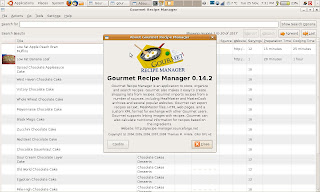
Once your recipe database has started to grow ,there is a search feature that helps you track down to elusive recipes with options to search by title, category, cuisine, ingredient or even instructions. You can rate each recipe as well on a 5 star basis, so that you can even search for your favorites this way.
If you don't feel like typing in all your recipes by hand, and want to get started right away, do a google search for Mealmaster recipes. There are tons of recipes already online, so start those that download, import and start cooking.